What It Means, Why It Happens, and How to Fix It Permanently
While working on documents, spreadsheets, emails, or online files, many users suddenly face a frustrating message:
“Retrieving data. Wait a few seconds and try to cut or copy again.”
This usually appears when you try to copy or cut text, but the system does not respond immediately. For people who work regularly with documents, this can break focus and slow productivity.
The good news is that this issue is very common, rarely serious, and usually easy to fix. Let us understand it step by step.
What Exactly Is This Error?
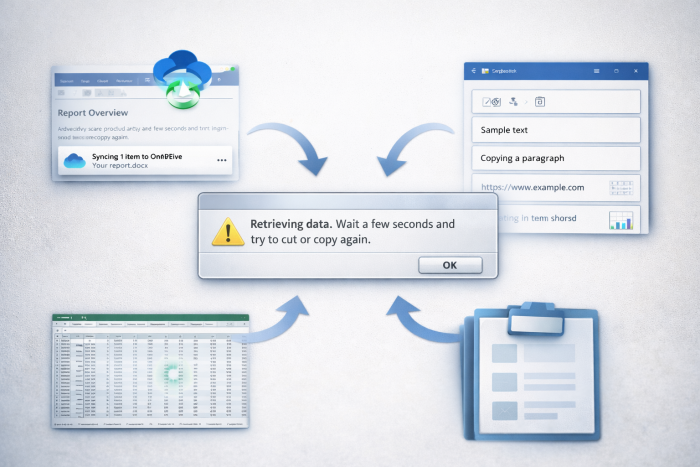
This message is not a technical failure or system crash. It simply means:
● The application is still loading the content
● The data you are trying to copy is not fully available yet
● The software is retrieving information from memory, cloud storage, or another source
In simple terms, the app is saying:
“Please wait, I’m not ready yet.”
Once the data finishes loading, copying usually works normally.
Where Do Users Commonly See This Message?
This issue is most often reported in:
● Microsoft Word
● Microsoft Excel
● Microsoft Outlook
● Google Docs and Sheets
● PDF readers
● Browser-based editors
● Files opened from OneDrive, Google Drive, or SharePoint
It can happen on both Windows and Mac systems, and even on well-functioning computers.
Why Does This Issue Happen So Often?
There is no single reason. Instead, it usually happens due to a combination of system behavior and file handling.
1. Cloud-Based Files Are Still Syncing
Modern files are often stored online instead of on the local computer. When you open a file from a cloud service, the app may show the content, but it is still downloading or syncing in the background.
If you try to copy text before syncing completes, the app pauses and shows this message.
This is the most common reason behind the issue.
2. The File Is Large or Complex
Files that contain:
● Large tables
● Multiple images
● Embedded charts
● Heavy formulas
● External links
take more time to fully load. Even powerful systems may delay copying until everything is processed properly.
3. Clipboard Is Temporarily Overloaded
Your system clipboard stores copied data. If:
● You copied many large items earlier
● Clipboard history is full
● Another app is using the clipboard
the system may delay new copy actions.
4. Application Has Been Running Too Long
Apps like Word or Excel may behave unpredictably if they:
● Remain open for many hours
● Handle multiple large files
● Run alongside many background apps
Over time, memory and performance issues can appear.
5. Internet or Network Issues
If your file is stored on:
● A shared office drive
● A remote server
● A company network
Even a small internet delay can trigger this error.
6. Software Bugs or Outdated Versions
Older versions of:
● Microsoft Office
● Browsers
● PDF readers
may contain bugs that affect copy and paste operations.
Quick Fixes You Can Try Immediately
These solutions work in most everyday situations.
1. Wait and Try Again
Often, waiting 5 to 10 seconds solves the problem.
Click inside the document once, wait briefly, and try copying again.
2. Save, Close, and Reopen the File
This refreshes the app and reloads the data properly.
● Save your work
● Close the file
● Reopen it
● Try copying again
3. Copy Smaller Sections
Instead of copying a full page or large table:
● Select a smaller portion
● Copy it
● Repeat if needed
4. Restart the Application
Close the app completely and reopen it. This clears temporary glitches.
5. Restart Your System
A system restart clears:
● Clipboard errors
● Memory conflicts
● Background process issues
Long-Term and Permanent Solutions
If this message appears frequently, consider these fixes.
1. Work on Downloaded Files Instead of Cloud Versions
Always download important files to your computer before editing.
Local files load faster and reduce sync-related issues.
2. Improve Internet Stability
Ensure:
● Stable internet connection
● No unnecessary VPN delays
● Network drives are properly connected
3. Keep Software Updated
Updates often fix known bugs related to copy-paste and clipboard behavior.
4. Disable Unnecessary Add-ins
Some add-ins slow down data handling in Word or Excel.
● Disable unused add-ins
● Restart the app
5. Clear Clipboard History (Windows Users)
● Press Windows + V
● Clear clipboard history
● Try copying again
Is This Error Dangerous?
No.
This message does not indicate:
● Data loss
● File corruption
● Security risk
It is simply a temporary processing delay.
However, if it happens:
● Every time
● In all applications
● Even with small files
then checking system performance or reinstalling software may help.
Final Thoughts
The “Retrieving data. Wait a few seconds and try to cut or copy again.” message is a minor but common productivity interruption.
In most cases:
● The system just needs time
● The file is still syncing
● A quick refresh solves the issue
By understanding the cause and applying the right fix, you can avoid unnecessary frustration and work more smoothly.
Post Comment
Be the first to post comment!