There are times when you may want to keep certain apps hidden on your iPhone, whether for privacy, decluttering, or avoiding distractions. Apple offers multiple ways to do this without deleting the apps. Here’s a concise guide on how to hide apps effectively.
Why Hide Apps on iPhone?
You might want to hide apps for:
- Privacy: Keeping personal or sensitive apps away from prying eyes.
- Decluttering: Reducing visual clutter and streamlining your home screen.
- Focus: Minimizing distractions from social media or games.
Hiding apps isn’t just about secrecy — it’s about control. As online privacy tools like DuckDuckGo’s AI image protection feature show, more people are taking digital visibility seriously, extending that mindset to their smartphones, too.
Use the App Library
The App Library organizes your apps and allows you to remove them from your home screen without deleting them.
How to Use:
- Long Press the app on your home screen.
- Choose Remove from Home Screen.
- Access the app later via the App Library by swiping right on your home screen.
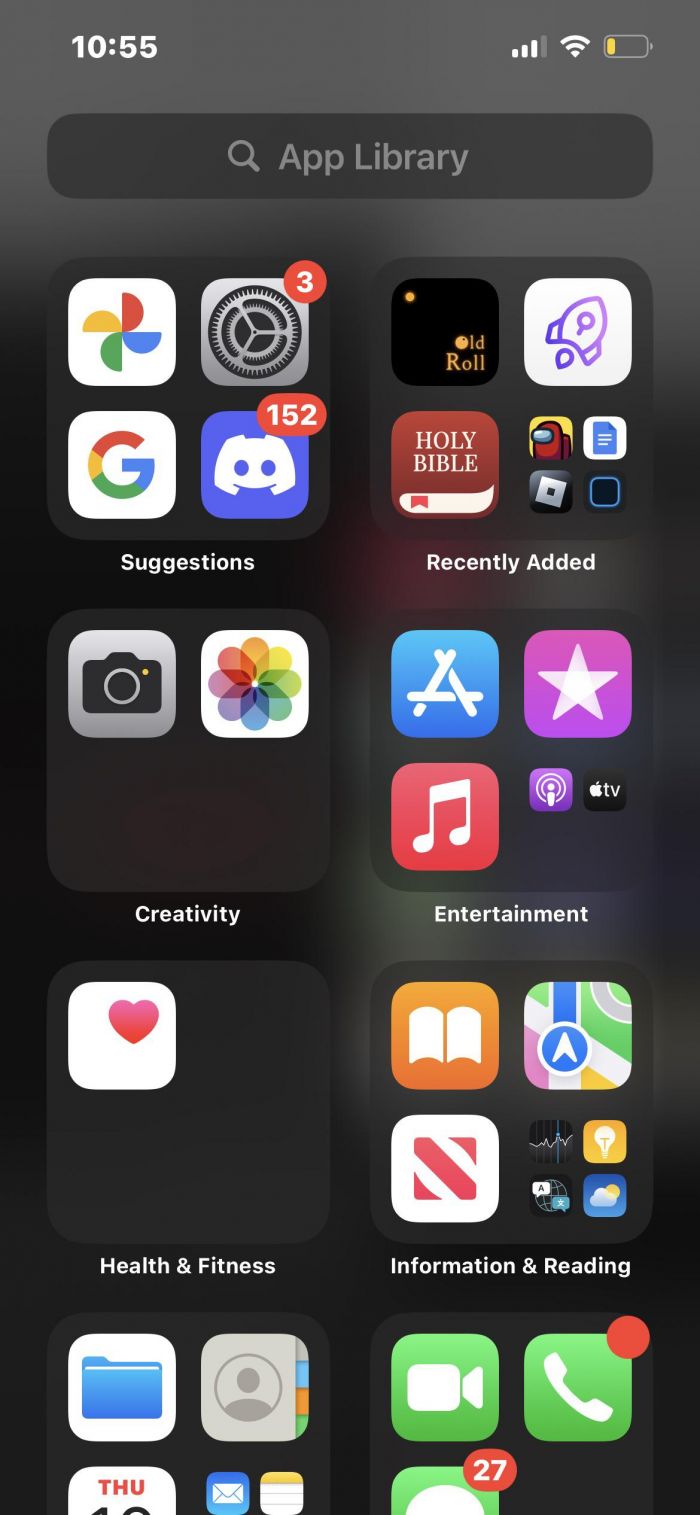
Best for: People who want a minimalist home screen without uninstalling apps.
This method doesn’t completely hide apps, but it adds a layer of discretion while keeping things organized.
Create a Hidden Folder
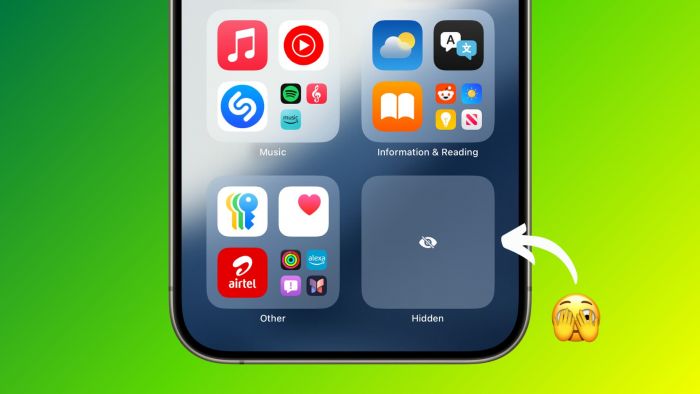
Organize apps into a folder and move it to a second or third page to keep them out of sight.
How to Create:
- Drag Apps into a folder.
- Move the folder to a hidden page or deep inside another folder.
- Label it something non-descriptive like “Tools”.
Use Restrictions to Hide Built-in Apps
If you want to hide pre-installed apps like Safari or Messages, use restrictions to disable them from showing on the home screen.
How to Hide:
- Go to Settings > Screen Time.
- Enable Screen Time and set a passcode.
- Tap Content & Privacy Restrictions > Allowed Apps and toggle off apps you want hidden.
Use Siri Shortcuts to Hide Apps
With Siri Shortcuts, you can create custom actions to open apps without displaying them on your home screen.
How to Set Up:
- Open Shortcuts app and create a new shortcut.
- Select Open App and choose the app to hide.
- Add the shortcut to your home screen with a blank icon.
Third-Party Apps
Some apps, like Hide It Pro or Secret Photo Vault, allow you to hide apps with additional privacy features such as password protection.
Disable App Notifications
If you don’t want to hide an app but prefer it to be less visible, turn off its notifications.
How to Turn Off:
- Go to Settings > Notifications.
- Select the app and toggle off Allow Notifications.
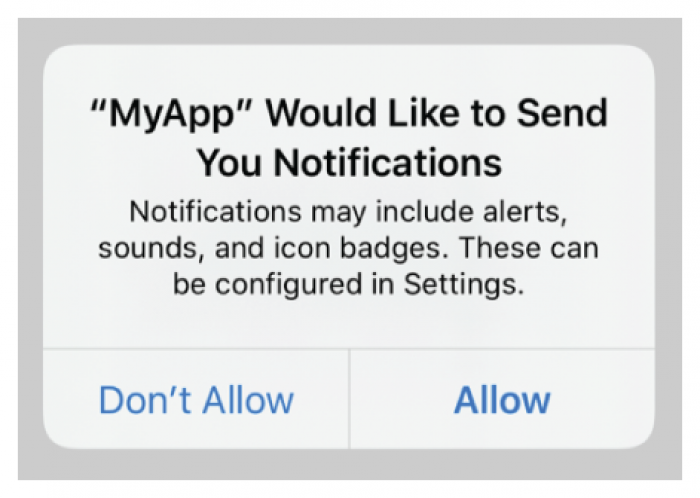
When exploring such options, always verify user trust and transparency.
For instance, independent reviews like this deep dive into FiveSurveys reveal how to identify legitimate tools versus those that misuse permissions — an important lesson for anyone prioritizing digital safety.
Conclusion
You don’t have to delete apps to protect your privacy or keep your home screen clean.
Whether you use the App Library, hidden folders, or Siri Shortcuts, iOS provides multiple ways to stay organized and discreet.
And as digital privacy awareness continues to grow, fueled by innovations like DuckDuckGo’s AI-based image protection, managing what’s visible on your phone is more relevant than ever.
By using these simple tools, you can enjoy a cleaner, more private iPhone experience without losing access to your favorite apps.
Post Comment
Be the first to post comment!